Your schedule page in the ClassPass Partner Dashboard has a new layout designed to make it easier to manage reservations, find important details, and identify revenue opportunities throughout the week. All the features you know and love are still available, and your spot allocation, policies, payouts, and attendance rules remain unchanged.
Along with the redesigned layout, you'll find new filters, calendar improvements, and personalized insights that provide more visibility into how SmartSpot is working for your business. Keep reading for a closer look at what's new and how to make the most of these updates.
What's changed on the ClassPass schedule page?
The redesigned schedule page brings your active classes or time slots and important details together in a new, scannable layout. This means partners can access information quicker and easier than ever before, empowering them to make more data-driven business decisions.
You can move between classes or time slots on your schedule to review details, check reservations, and access management options, all from the same page.
The details panel includes two tabs:
- Insights: View utilization information for your selected class or time slot. If SmartSpot is enabled, you'll also find the new insights chart here.
- Roster: See which clients have reservations for the class or time slot.
You'll also notice an update to how spot information is labeled. The number previously displayed next to SmartSpot-managed classes or time slots now appears as Max bookings. This feature itself hasn't changed, just where and how it's displayed.
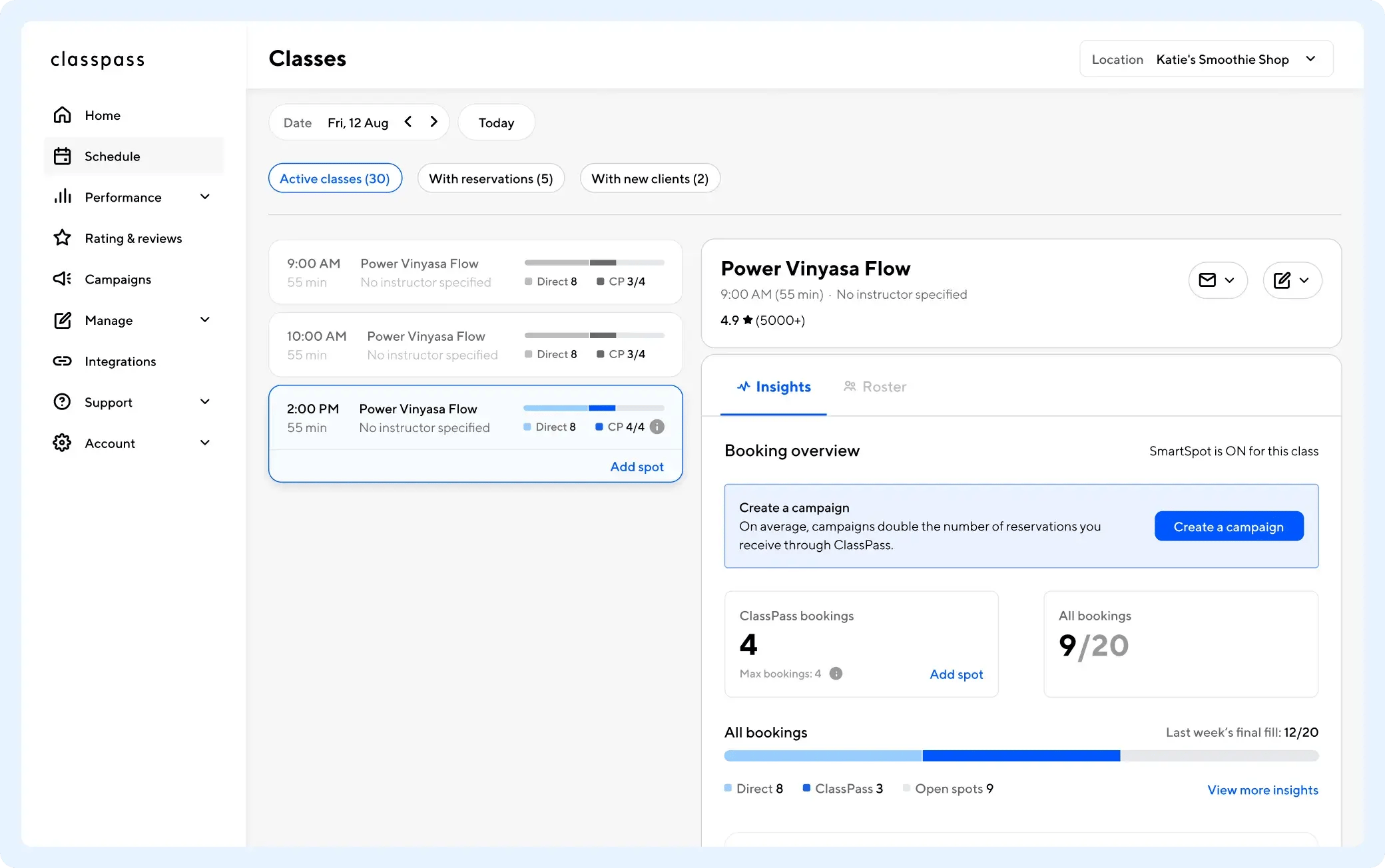
Easily find specific classes or time slots with new filters
New filters at the top of your schedule page make it easier to find what you're looking for. Each filter displays a live count, so you can see how many classes or time slots match before selecting it.
-
Active: See all classes or time slots currently live on your schedule.
-
With reservations: Find classes or time slots with at least one reservation.
-
With clients waiting: See which classes or time slots have clients waiting for a spot.
-
New clients: Find sessions with clients making their first reservation at your business.
-
Disabled: View classes or time slots that aren't currently available for reservations through ClassPass.
You can switch between filters as needed to focus on the parts of your schedule that require your attention.
Spot additional demand in the calendar
The updated calendar makes it easier to identify days when clients are waiting for spots. Demand indicators highlight those dates, helping you see where there's an opportunity to accommodate more clients and increase your earning potential.
Select a date to view its scheduled classes and time slots, then use the filters to narrow your list to those with waiting clients. From there, you can decide whether to add another spot.
Add a spot in one tap
You can now open more spaces to ClassPass members directly from your schedule using the Add spot button on eligible classes or time slots. When clients are waiting, you can make an additional spot available in one tap, helping you leverage demand and drive incremental revenue.
How do SmartSpot insights work?
Based on partner feedback, we've introduced a new SmartSpot insights chart to give you a better understanding of how spots are opened for your classes or time slots. The chart helps explain how SmartSpot manages availability based on demand while protecting your direct members' reservations.
Here's what you'll find in your new insights:
-
Average fill: See how full the class or time slot has been on average over the past four weeks.
-
Projected capacity: Compare reservations so far with how full the class or time slot is expected to be by its start time.
-
SmartSpot transparency: Understand how the demand patterns shown relate to the spots SmartSpot opened for your class or time slot.
To explore the chart:
-
Open the schedule page in your Partner Dashboard.
-
Select a class or time slot with SmartSpot enabled.
-
Go to the insights tab in the details panel.
If you don't use SmartSpot, you can still access the insights tab to monitor utilization and keep track of how full your classes or time slots are. To unlock the benefits of SmartSpot, integrate your booking system here.
Frequently asked questions about the schedule page update
Was anything removed from the schedule page?
No. All features you previously used are still available. The updated layout and new features just make important information and tools easier to find.
Where did the number next to my SmartSpot-managed classes and time slots go?
The number now appears as Max bookings under Insights. Only the label and location have changed.
Does this update change how spots are allocated?
No. The update doesn't change how spots are allocated or how SmartSpot manages availability. Your existing policies, payouts, and attendance rules also remain unchanged.
Is the SmartSpot prediction a guarantee?
No. The prediction estimates how full a class or time slot may be by its start time. Actual occupancy may vary.
Why don't I see the SmartSpot insights chart?
The chart is available for classes or time slots with SmartSpot enabled. If you don't see the redesigned schedule page yet, the update may still be rolling out to your account.
When will I see the refreshed schedule page?
The update is rolling out in phases. Most partners are expected to have access by the end of October 2026.
Can I still add spots myself?
Yes. You can use the Add spot button directly from your schedule when the action is available for a class or time slot.
Who can I contact with questions?
You can reach out to your account manager or contact ClassPass Partner Support for help with the update.
Explore the updated schedule page in your Partner Dashboard to see the new layout and insights for yourself.
See what’s new